Learn Next JS Server Actions with Books
Vercel released Next JS 13.4 on 3 days ago (at the time of writing this article), and with that release came two huge announcements: the stability of the app router and a new alpha feature called server actions.
Server actions allow you to write server functions right next to your server components. It's a big deal because, with this, you don't need API routes for mutations when doing any type of data mutation (like submitting a form).
At the time of writing this article, server actions are an alpha feature. Do NOT use server actions in production until the feature become stable.
I'll teach you how to use server actions today by building a mini bookshelf! We will be using the new Vercel PostgreSQL database and Prisma to store and interact with the books, and TailwindCSS for the UI of the app (albeit very minimal).
I won't be going into that much depth regarding the UI of the app (because it kinda sucks) and how to use Prisma. The Useful Links section will have docs links related to that.
Creating the App
Before we create the app, let's install the Vercel CLI as follows:
To create the new Next JS app, use the following command and respond to all of the subsequent prompts.
Once the app is created and opened, add the following to the next.config.js file to use server actions, as it is an alpha feature:
Because we will be using Prisma later on, let's install it right now:
Now set up Vercel deployment for the project using the Vercel CLI by just typing in vercel to your terminal.

Setting up the Database
Now let's set up the database. I'll show you how to use the new Vercel PostgreSQL Database, which is a beta feature (so don't use it in production 😄).
Go to your project dashboard on Vercel and go to the storage tab. Then press the connect store button and create a new serverless PostgreSQL database.
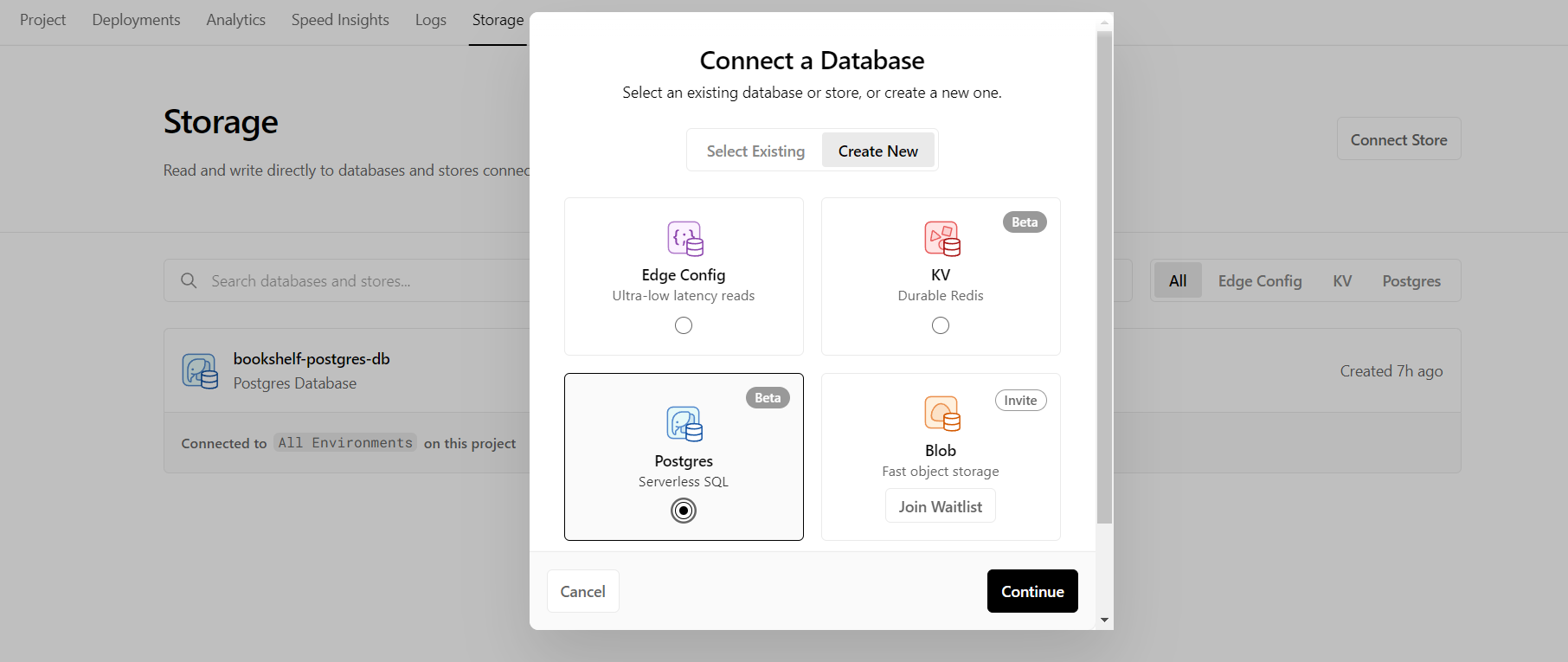
Once the database is created, go to the getting started tab and run the following commands in the terminal:
These commands will put the necessary environment variables needed to use Prisma. Let's first initialize it using this command:
Make sure to remove the
.envfile Prisma automatically generates, as we already pulled all of the necessary environment variables in the.env.localfile.
Now that Prisma is working, use the following Prisma schema:
Now let's push this schema to the database and make it ready for the client with:
The next step for the database is populating it with some data; you can do whatever you want (like making a script or manually doing it in the studio), but make sure the Book table has some values.

The final step for the database is setting up the client. In the src/app/ directory, create a lib folder and a file inside of it called prisma.ts and paste the following code:
Setting Up Basic UI
Ok, so we can now focus on the front end. For the home page (src/app/page.tsx), we can first fetch all of the books from the database as follows:
Then we can loop through the books array and display the following UI:
You should have the following on your screen (the difference would be what you put in the database):
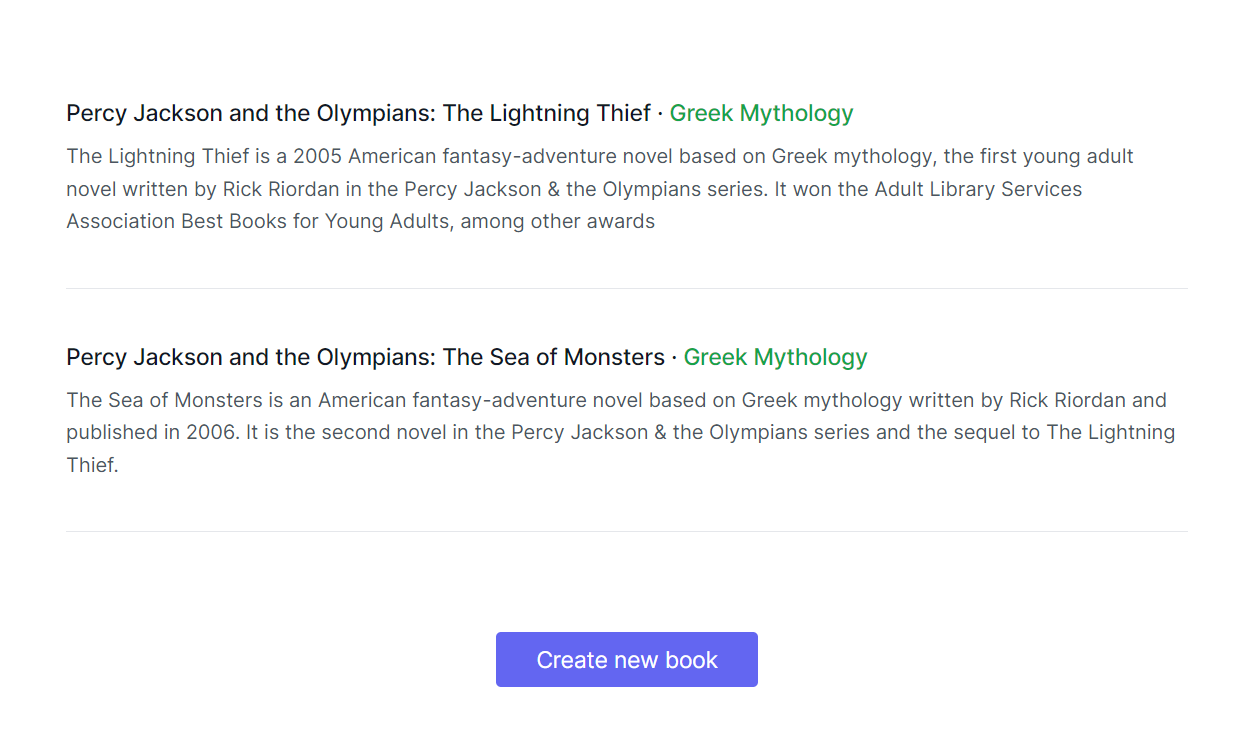
The button with the text "Create a new book" right after the map function will allow the user to go to the edit page, where the magic behind server actions happens.
Using Server Actions on the Edit Page
Now let's create a new folder called edit in the src/app directory and a new page file with the default server component configuration:
Let's add the following form so that we can get user input regarding the creation of the new book (the name, genre, and description fields):
It should look something like this:
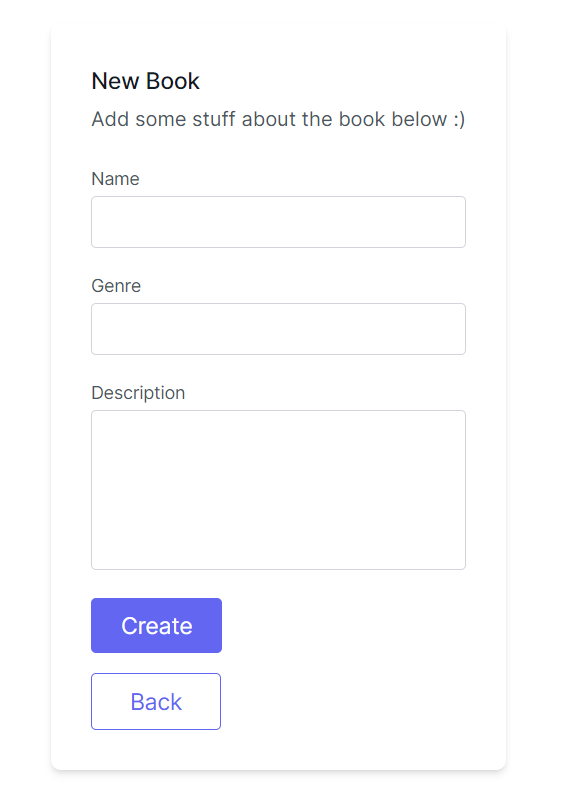
Now here is where the fun begins. To create a server action, create an asynchronous function with the "use server" directive at the top inside of the server component. Since we are using the action in a form, the argument will be of type FormData:
We can create a new row for the new book in the database using Prisma as follows:
To invoke this server action, pass this function into the action prop of the form tag:
And just like that, we can now submit the form to add new books to our database!

The Potential for Server Actions
This post only covered the tip of the iceberg when it comes to server actions and their potential, so feel free to check out the Next JS docs on server actions here to learn more about it.
As the feature evolves and eventually becomes stable, there will probably be a lot more use cases (and be way more secure) for server actions, making this article outdated ☹️.
Well in the meantime, I hope this article helped with learning server actions for the first time. Share it with any dev that wants to learn it, and thanks for reading!
Signing off 👋
Useful Links
- Code on GitHub
- Cool video about server actions from Fireship
- Prisma Docs
- Tailwind CSS Docs