How to build a modal using Tailwind CSS
Hello, everyone. Creating and using modals is very important in many web applications. So today we will learn how to make a modal using Tailwind CSS and the Headless UI library.
Set Up & Clean Up
Create a new Next JS app with Tailwind CSS:
After that, install all the dependencies we will use:
Then inside our app, you can delete everything inside of index.js and add the following:
Building the Modal
Creating the Modal
The first thing we should do is create a directory called components and create a new component for our modal. It would be best to name it Modal.js. Then inside the file create a new React functional component and export it (preferable use a snippets extension.
Now we can render it in our index.js file:
Using the Dialog Component
Dialogs, a pre-built component that comes from Headless UI, will be the main tool we will use to build our modal. Dialogs are built using the Dialog, Dialog.Overlay, Dialog.Title, and Dialog.Description components. We first should build some state to track whether our Dialog is open or closed.
Now lets create the Dialog component. The component has an open prop, which will track whether to render the Dialog contents onto the page or not. It has an onClose prop, which will run a function when the user clicks out of the modal. It also has a as prop, which will tell Next JS how to render the component (i.e. a div tag, a main tag, etc.).
In our case, the open state will manage the open prop, and we will render our modal as a div. We will simply set the open state to false when we click out of it.
Modals are typically rendered on top of a transparent background. The Dialog.Overlay component can be used and styled to achieve the specific look.
The Dialog.Title and Dialog.Description components are there to add accessibility to your modal (to make it more visible). They are automatically linked to the root Dialog component through the aria-labelledby and aria-describedby attributes, which will be annonuced to users that are using screen readers.
Now there really isn't anything special behind styling the modal; just use the styles you want to use. Usually modals will be centered on the screen and have a maximum width constraint. Here is a span tag you will use to trick the browser into centering the modal contents onto the screen:
Now I used and tweaked some styles from the documentation to create the following modal that you would probably use when updating some info:
The modal should look like this:
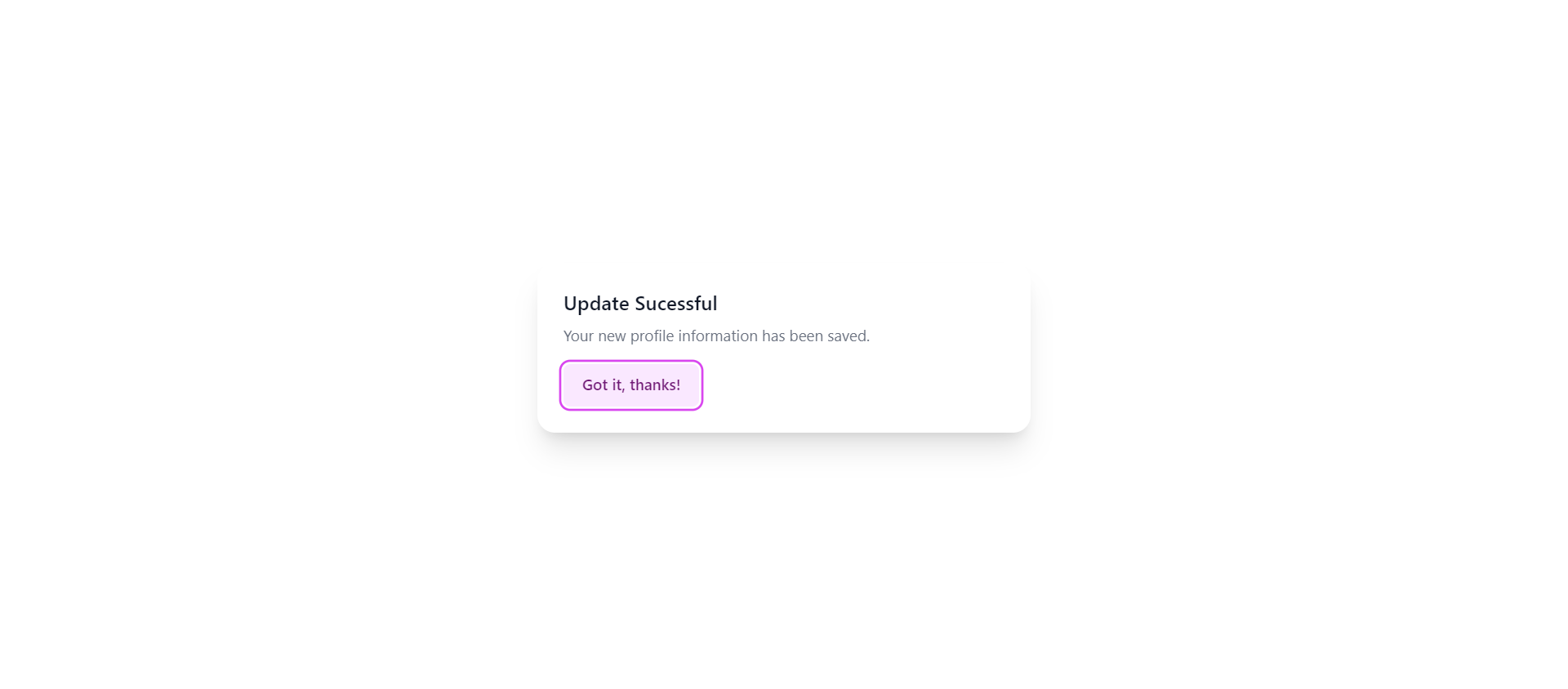
Now you should also have a button that you can use to open and close the modal (you can also close the modal by clicking outside of the screen). When you click it, you can set the open state to true.
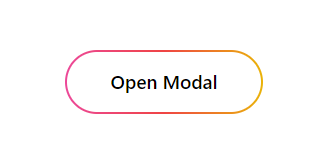
Here is how the modal button should look:
Using Transition to make things fancier
You can use the Transition component, that coincidentially also comes from Headless UI, to animate the opening and closing animations of the modal. First, you need to wrap the Dialog component in a Transition component. The show prop is basically the open state.
The styles that are used in the Transition component usually stay the same, but you can change them as you please. The enterFrom and leaveTo props are the same, and the enterTo and leaveFrom props are the same.
Next, wrap each section of content you want to animate in a Transition.Child component (ideally the overlay and the content div).
I think we've made a pretty fire modal if I do say so myself 🔥😁
Conclusion
Using Tailwind CSS to build modals is quite easy with the Headless UI library. You can even use the hero icons library from the creators of Tailwind CSS to make the modal even better. I highly recommend that you use these libraries for complex apps and projects. I hope you found this article useful, and please share with anyone that needs it. Thanks for reading!
Signing off 👋
Useful Links
- Code on Github (the source code uses TypeScript, but there isn't a big difference)
- Headless UI Documentation